Prism Sound has a new website! Click on the button to visit it and see what's new! VIEW SITE
Prism Sound / SADiE Statement over the Coronavirus Outbreak – click to read
Prism Sound Where to Buy
  • Recording & Production
  • Test & Measurement
  • SADiE audio editors
  • Audiophile Products
  • Touch navigation
  • Home
    • In the News
    • Offers
    • Videos
    • Corporate
    • Heritage
    • Events
    • Careers
    • Other Sites:
      • Test and Measurement
      • Logging and Transcription
      • SADiE
      • Imerge
      • Audiophile
      • XiVA
    • Links
      • Reviews
      • Users
  • PRODUCTS
    • TitanTitan
      8 Channel USB Audio Interface
    • AtlasAtlas

      8 Channel USB Audio Interface
    • Lyra 1Lyra
      Compact USB Audio Interface
    • ADA-8XRDream
      ADA-8XR
      Modular Audio Interface
    • DA-2Dream DA-2
      Premium 2 channel D/A converter
    • Overkiller
      passive barrel limiter
    • VerifileVerifile
      Software
    • Legacy Products:
      • OrpheusOrpheus
        8 Channel Firewire Audio Interface
      • AD-2Dream AD-2
        Premium 2 channel A/D converter
    • Other Sites:
      • Test and Measurement
      • Logging and Transcription
      • SADiE products
      • Imerge
      • Audiophile
  • SUPPORT
    • Support Home
    • FAQ
    • Downloads
    • Resources
    • Tech Support Form
    • Register Product
  • CONTACTS
    • Company Contact Info
    • Dealers and Distributors
    • Enquiry Form
    • Quotation Form
  • Home:
    • In the News
      News stories and press releases
    • Offers
      Offers and promotions
    • Videos
      Prism Sound Videos
    • Corporate
      Company information and history
    • Heritage
      Prism Sound heritage
    • Events
      Upcoming shows, exhibitions and events
    • Careers
      Jobs, careers and opportunities at Prism Sound
    • Other Sites:
      • Test and Measurement
        Link to Prism Sound Test and Measurement site
      • Logging and Transcription
        Link to Prism Sound Logging and Transcription site
      • SADiE
        Link to SADiE website
      • Imerge
        Link to Imerge website
      • Audiophile
        Link to Audiophile website
      • XiVA
        Link to XiVA website
    • Links
      Links to Prism Sound User's sites
      • Reviews
        Link to Prism Sound product reviews
      • Users
        Links to Prism Sound User's sites
  • PRODUCTS:
    • TitanTitan
      8 Channel USB Audio Interface
    • AtlasAtlas

      8 Channel USB Audio Interface
    • Lyra 1Lyra
      Compact USB Audio Interface
    • ADA-8XRDream
      ADA-8XR
      Modular Audio Interface
    • DA-2Dream DA-2
      Premium 2 channel D/A converter
    • Overkiller
      passive barrel limiter
    • VerifileVerifile
      Software
    • Legacy Products:
      • OrpheusOrpheus
        8 Channel Firewire Audio Interface
      • AD-2Dream AD-2
        Premium 2 channel A/D converter
    • Other Sites:
      • Test and Measurement
        Test and Measurement products
      • Logging and Transcription
        Link to Prism Sound Logging and Transcription site
      • SADiE products
        Link to SADiE website
      • Imerge
        Link to Imerge website
      • Audiophile
        Link to Audiophile website
  • SUPPORT:
    • Support Home
      Product technical support
    • FAQ
      FAQ's, Tips and Techniques
    • Downloads
      Software, Firmware and Manuals
    • Resources
      Reference material and downloadable resources
    • Tech Support Form
      Technical Support form
    • Register Product
      Studio products registration form
  • CONTACTS:
    • Company Contact Info
    • Dealers and Distributors
    • Enquiry Form
      Quick and Simple Enquiry Form
    • Quotation Form
      Request prices, loan or demo equipment

Recording and Production Tech Notes

DA-2 setting  2-wire or 1-wire 96k mode

Holding the "Set" button down while pressing one of the three adjacent switches puts the unit into one of the following control modes: Either Set Inputs, Set Level, or Set Master, as described by the red front-panel legends. These modes allow the user to modify the configuration of the DA-2. In normal use they are not required.

Set Inputs mode

The Set Inputs mode is used to enable or disable the selection of individual digital inputs to avoid cycling through unused inputs when switching between sources. (Note: in this mode the MUTE button has the function of enabling the inputs. For that reason it is referred to as the MUTE/Inputs control.)
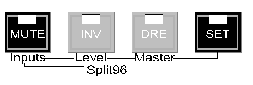
To enter Set Inputs mode, the DA-2 must first be in normal mode (i.e. if the SET control is not already illuminated). While holding the SET button down, press the MUTE/Inputs button. This mode is indicated by both the MUTE/Inputs and the SET LEDs being lit.

The seven input indicators on the left of the unit illuminate to indicate the inputs that are enabled. One (or two) of the indicators will be flickering to show the input(s) selected for enabling or disabling. Press the MUTE/Inputs control to toggle the enable state of this(these) input(s). The flickering will toggle between fast (mostly on), indicating enabled and slow (mostly off) indicating disabled.
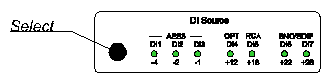
Press the Select button to cycle through the other inputs so that they can then be enabled or disabled using MUTE/Inputs.

Inputs DI2 and DI3 (the second and third AES3 XLR inputs) can be configured as a 'Split96' input (see below). If configured for Split96 operation when selecting inputs for enabling or disabling, the indicators for DI2 and DI3 will operate together.

Split96 Sources
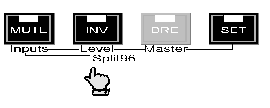
Once in SET Inputs mode (see above), press the INV/Split96 button, to change the mode of inputs 2 and 3 for either Split96 (2-wire) or normal (1-wire) operation.

In Split96 mode, two AES3 bearers both at 44.1kHz or 48kHz carry a stereo 88.2kHz- or 96kHz-sampled signal, with one channel carried on each bearer as described in ref. 8. "Split96" or "2-wire AES" sources may only be connected to Inputs 2 & 3.

Split96 mode (for DI2 & DI3 only) is indicated once in Set Inputs mode by the INV/Split96 LED being ON. Thereafter, inputs DI2 and DI3 are treated as a Split96 pair unless the INV/Level (Split96) button is used again to separate them - this is irrespective of the mode expressed in the channel status.

In Split96 mode input 2 carries the left channel and input 3 carries the right channel.

Split96 mode is only available on inputs 2 & 3 and the Split96 indication does not change while in SET Inputs mode if other inputs are selected for enabling or disabling.

NOTE: When XLR inputs DI2 and DI3 are configured for Split96 operation, the digital XLR outputs, DO1 and DO2 are automatically set to provide Split96 output if the DA-2 is operating at 88.2kHz or 96kHz. Output channel status in this mode is in accordance with the proposed recommendations in Draft AES3-1992 Amendment 3-xxxx - Serial Transmission Format for Two-Channel Linearly Represented Digital Audio Data' (still in preparation, July 1998).

Press SET to leave Set Inputs mode and return to normal mode.


UK: +44 1353 648888   US: +1 212 586 1033


Find Prism Sound on Facebook Follow Prism Sound on Twitter Prism Sound - a METAlliance Pro Partner AES Sustaining Member


  Prism Media Products Limited; Registered in the UK, Reg. No. 2719511,   Prism Sound Limited; Registered in the UK, Reg. No. 2176912
  Address for both companies: Unit 1A, Grovemere House, Lancaster Way Business Park, Ely, Cambridgeshire, CB6 3NW, UK